
Edit your layout
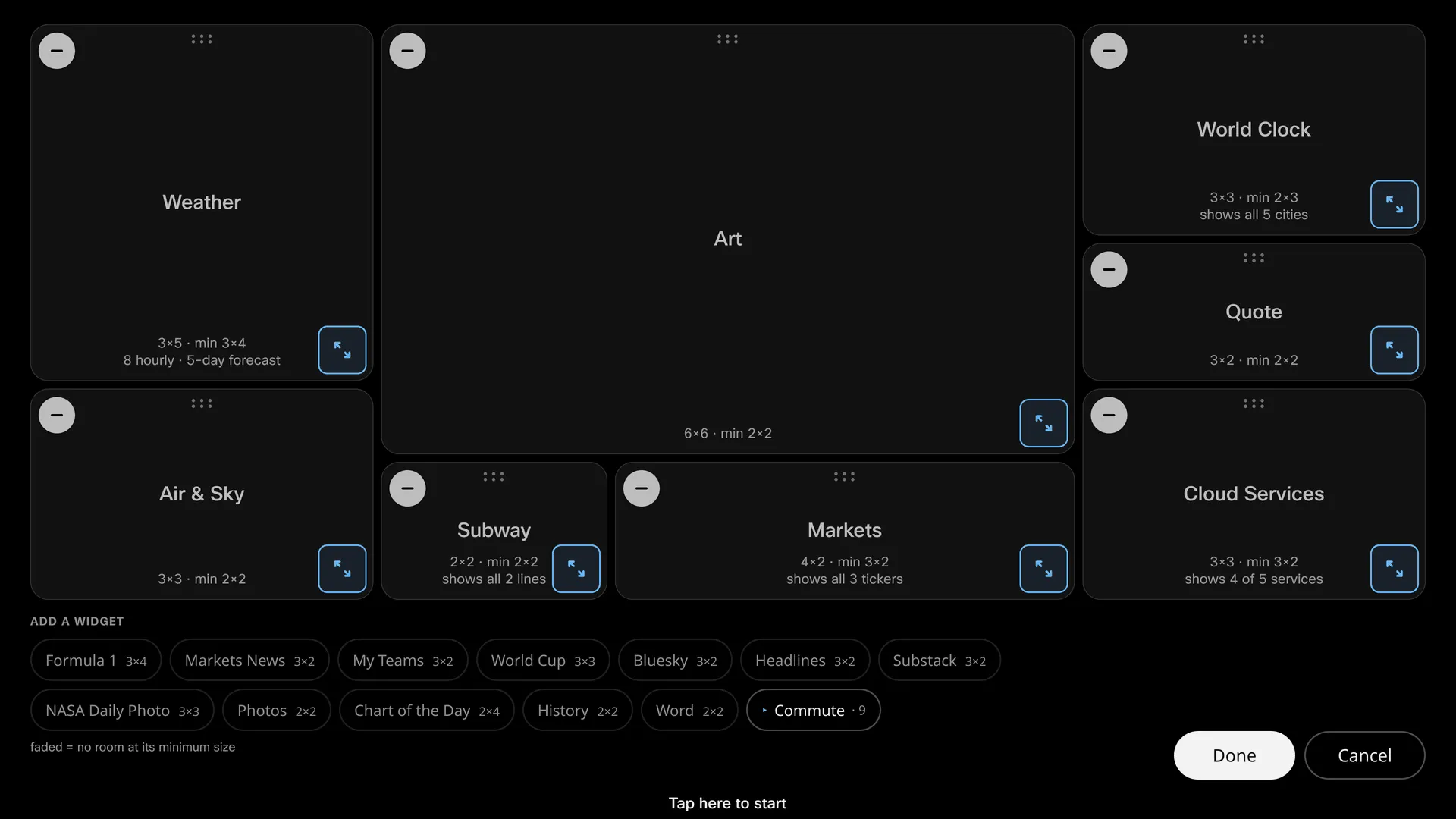
Tap the pencil and the dashboard becomes editable. Everything happens by touch, directly on the glass.
Moving and resizing
Section titled “Moving and resizing”- Drag a card to move it. Cards in the way slide aside as you go.
- Drag a card’s corner handle to resize it. Cards snap to the grid, and each card has a minimum size it won’t shrink past.
- The button removes a card — the grey circle with the minus, in the card’s top-left corner. The card moves to the tray at the bottom and can be re-added later.
A drop that doesn’t fit flashes red and snaps back; an invalid arrangement is never saved.
Bigger cards show more
Section titled “Bigger cards show more”Most cards show more as you give them room: more departures, more tickers, more headlines. While you’re editing, each card tells you how many rows fit at the size you’ve made it, so you can size cards to exactly what you want to see.
The tray
Section titled “The tray”The tray along the bottom holds every card you’re not currently using, sorted into the same groups as the widget guide. Tap one to add it. Larger groups fold into drawers to keep the tray compact.
Done and Cancel
Section titled “Done and Cancel”Done saves the layout to the board. Cancel puts everything back the way it was, no matter how much you moved.